User Defined I/O Details
Group 12 allows the user to select a function for each Digital Input making their own custom Macro to suit any controller. This topic breaks down each function and how that can be assigned to each Digital Input.
To assign a function to a Digital Input is done by using Parameters P12-01 to P12-08 and selecting from the options available listed in the User Defined Settings Table.
The image below shows the parameter that is used to select each Digital Inputs functions from the list in the User Defined I/O - Available Terminal Functions section.
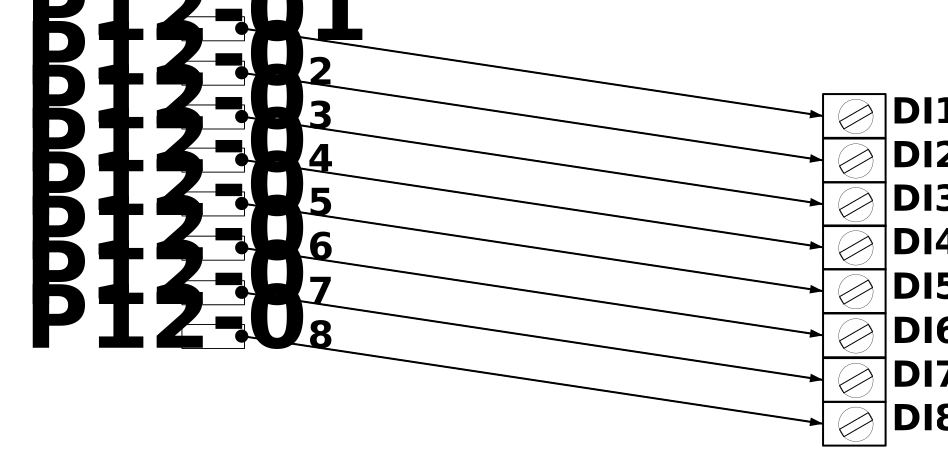
User Defined I/O - Setting Up Group 12
To set up Group 12 from default and create a User Defined Macro follow the steps below:
First set P1-02 to 0. This setting of P1-02 is the User Defined Macro and allows editing of Group 12.
To unlock Group 12 to view on the drive display or OptiTools Pro P11-02 must be set to equal the value of P11-04.
Once Group 12 is unlocked you can now assign a function to each digital input using parameters P12-01 - P12-08 for each Digital Input. All the functions available for each Digital Input are listed in the section User Defined I/O - Available Terminal Functions.
If you do not want to use a certain Digital Input then set the associated parameter in Group 12 to 0: No Function.
A time saving step is to pre-populate Group 12 with a pre-defined Macro that is available in P1-02 and then modify that macro rather than starting from scratch. For example setting P1-02 to 11 would pre-populate Group 12 with the functions of Macro 11. Which can then be modified to suit your controller needs.
In the case of Macro 11 it uses one Digital Input for Brake Release Monitoring (Digital Input 7) but you may want to add an addition Brake Monitoring Input as your motor has two switches. Digital Input 8 which in Macro 11 has no function assigned could be used as this input. Rather than having to set this up as a User Defined Macro from scratch you can quickly pre-load Macro 11 and simply add the additional Brake Release Monitoring function to Digital Input 8 without having to also populate every other Digital Input to match Macro 11.
Below are the steps to pre-populate Group 12 with Macro 11 then modify Group 12 to make Digital Input 8 the second Brake Release Monitoring Input.
Set P1-02 to a pre-defined macro in this case we will modify Macro 11 so we set P1-02 to 11.
This now populates Group 12 with the functions assigned to each Digital Input that comprise Macro 11.
Now set P1-02 to 0. This makes Group 12 available to edit while also leaving Macro 11 functions pre-populated in Group 12 for easy editing.
Now rather than creating a Macro from scratch you can slightly modify an existing Macro to fit your controller. In this example we wanted to add a second Brake Release Monitoring Input to Digital Input 8. So now we can just set parameter P12-08 to 24 to get the second Brake Monitoring Input and leave the rest of Group 12 with the pre-populated values from setting Macro 11 in Step 1.
Now we have created a User Defined Macro by modifying an existing Macro. This process can be used to quickly alter any Macro in the drive.
To use this method the drive must be powered on.
The table below lists the settings available to create a custom Macro using Group 12 to assign functions to each Terminal Input.
Note
Each terminal has the same functions available that are listed below, however only terminals DI4 (P12-04) & DI5 (P12-05) can operate as either a Digital or Analog Input.
Drop Down Options | Function | |
|---|---|---|
Open | Closed | |
0: No Function | Input Disabled | Input Disabled |
1: Run Forward | Disabled | Run Forward |
2: Run Reverse | Disabled | Run Reverse |
3: Levelling Speed | Disabled | Run at Levelling Speed (P8-05) |
4: High Speed | Disabled | Run at High Speed (P8-06) |
5: High Speed 5 | Disabled | Run at High Speed 5 (P8-12) |
6: Inspection Speed | Disabled | Run at Inspection Speed (P8-08) |
7: Fault Reset | Disabled | Reset Fault |
8: Rescue Mode | Mains Mode | Rescue Mode |
9: E-Trip Mode 1 |
| Ok |
10: Preset with override High Speed | Levelling Speed or Selected Speed from Setting 11 & 12 | High Speed |
11: Preset with override Inspection Speed | Levelling Speed or Selected Speed from Setting 10 & 12 | Inspection Speed |
12: Preset with override Intermediate Speed | Levelling Speed or Selected Speed from setting 10 & 11 | Intermediate Speed |
13: E-Trip Mode 2 |
| Ok |
14: Preset Bit 0 (2) | Speed Selection Bit 0 Low | Speed Selection Bit 0 High |
15: Preset Bit 1 (2) | Speed Selection Bit 1 Low | Speed Selection Bit 1 High |
16: Preset Bit 2 (2) | Speed Selection Bit 2 Low | Speed Selection Bit 2 High |
17: Speed Reference | Speed Reference | Speed Reference |
18: Torque Sensor | Input is used as torque feedback from external sensor | Input is used as torque feedback from external sensor |
19: Forward, Contactor Control | Disabled | Close Motor Contactor & Run Forward |
20: Reverse, Contactor Control | Disabled | Close Motor Contactor & Run Reverse |
21: Drive Enable | Disabled | Enable Drive |
22: E-Trip Mode 3 |
| Ok |
23: Brake Release Monitor Input 1 | Brake Release Monitoring 1 Input Open | Brake Release Monitoring 1 Input Closed |
24: Brake Release Monitor Input 2 | Brake Release Monitoring 2 Input Open | Brake Release Monitoring 1 Input Closed |
25: Analog mode | Analog Speed Reference | Analog Speed Reference |
26: Direction (0 – Fwd, 1 - Rev) | Run Forward | Run Reverse |
27: Preset Bit 0 With Active (3) | Speed Selection Bit 0 Low (requires 1 bit High to run) | Speed Selection Bit 0 Low (requires 1 bit High to run) |
28: Preset Bit 1 With Active (3) | Speed Selection Bit 1 Low (requires 1 bit High to run) | Speed Selection Bit 1 Low (requires 1 bit High to run) |
29: Preset Bit 2 With Active (3) | Speed Selection Bit 2 Low (requires 1 bit High to run) | Speed Selection Bit 2 Low (requires 1 bit High to run) |